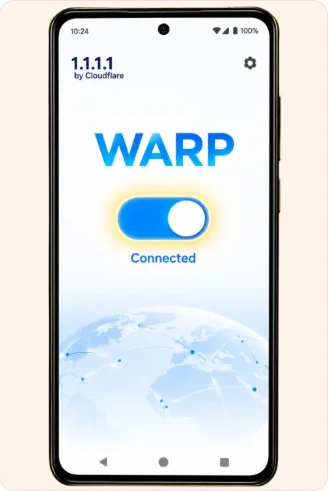
Open the page on Android
Check whether the address is open in your regular browser or inside another app. An embedded browser can hide the address bar or handle downloads differently. If you move the page to your regular browser, check that the address and interval heading match before continuing. Use your usual browser controls to return to the previous page.
Use the site on iPhone
A home-screen shortcut may open with fewer browser controls. To inspect an address or share a particular timing page, open it in Safari and use the page's own interval link. Return to the same tab after switching apps. The reference clock reads the current instant again when the page becomes visible, so comparing an old screenshot requires comparing its period identifier as well.
Check a connection change
If the page stops loading after a change from Wi-Fi to mobile data, try opening the same information page once on the new connection. On Android, review the active network in Settings. On iPhone, check whether the browser is allowed to use mobile data. If a VPN profile is already active, note its status and consult the instructions supplied by its provider before changing it. Keep the network name and private profile details out of a support message.
Keep the phone upright if a wide table is difficult to read and scroll within the timing page to see the history below the current reference. Text labels identify each field independently of its colour.
Connection setup by device
Choose your device to see the four reference screens for 1.1.1.1 with WARP. Screen labels may vary by app version.
iOS connection steps
Open App Store on your device.
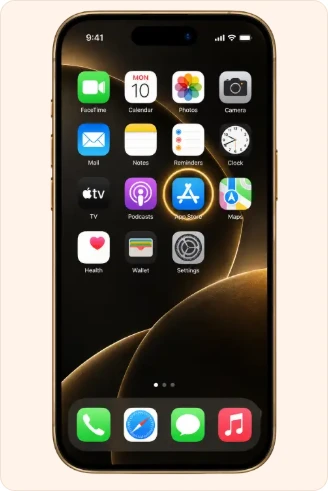
Find 1.1.1.1 by Cloudflare and review its store listing.
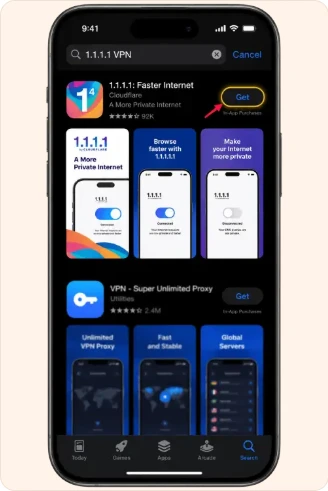
Open the app, turn on WARP and review the VPN permission request.
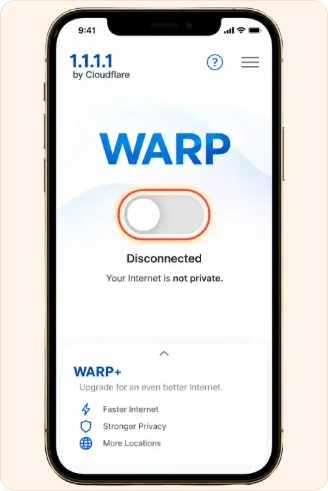
Check for the Connected status before returning to the browser.
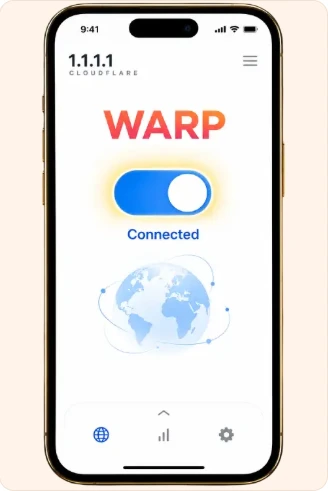
Android connection steps
Open Google Play on your device.
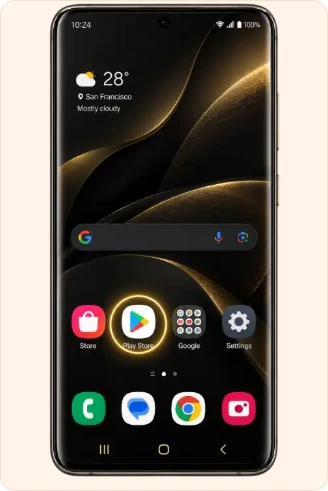
Find 1.1.1.1 by Cloudflare and review its store listing.
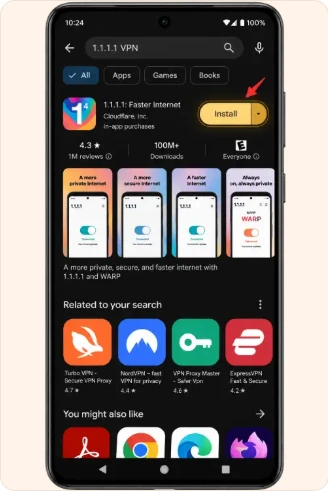
Open the app, turn on WARP and review the VPN permission request.
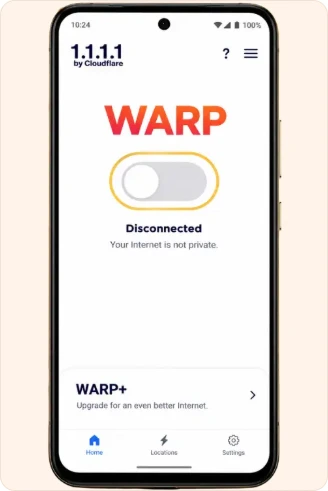
Check for the Connected status before returning to the browser.